PortTracker: A Game-Changer for Network Monitoring - No More Port Conflicts!
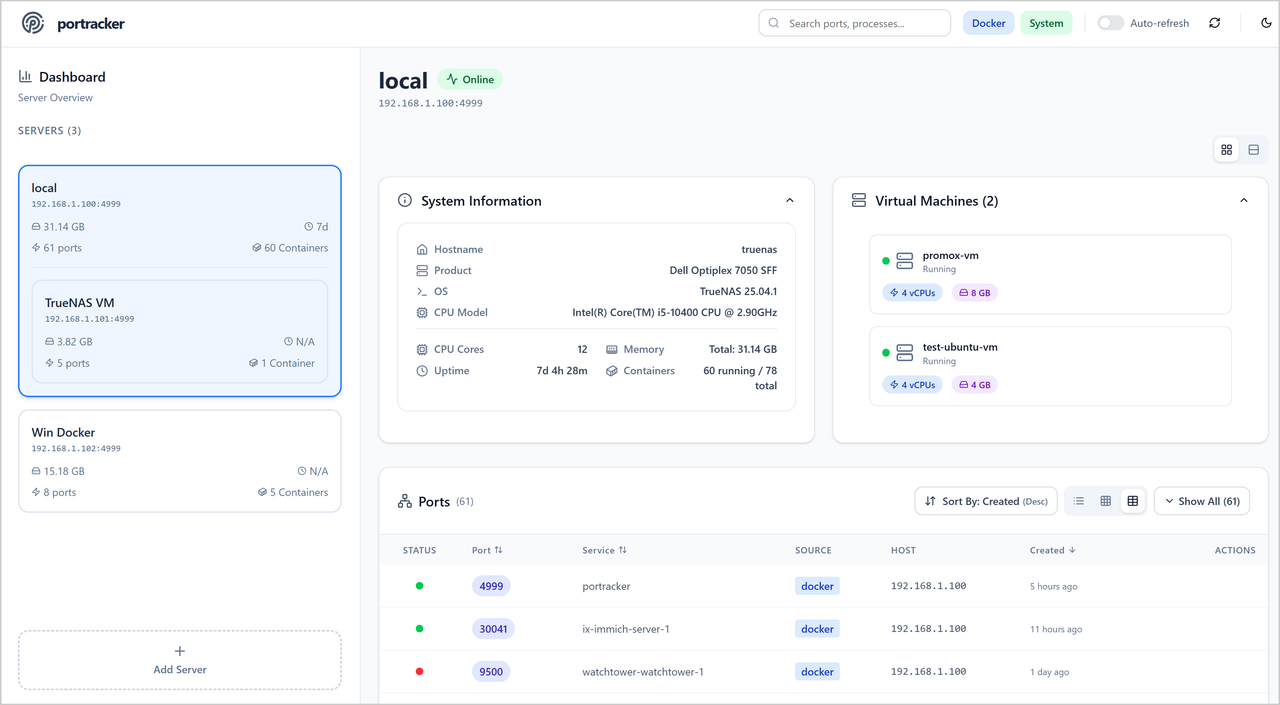
PortTracker: Finally, a Simple Solution to Network Port Management
Hey everyone! I recently stumbled upon a tool that’s been a real lifesaver for my homelab setup, and I just had to share it with you all. If you’ve ever deployed a service only to find out port 8080 is already taken by something else, or if you’ve been managing your network services in a messy spreadsheet (we’ve all been there!), then PortTracker might just be exactly what you need.
The Problem We All Face
Let’s be honest - how many times have you spun up a Docker container or deployed a service, only to get that dreaded “port already in use” error? I know I’ve been there countless times. You end up playing port roulette, trying random numbers until something works. Or worse, you have that one Excel sheet where you try to keep track of what’s running where, but it’s never up to date.
This is especially frustrating when you’re running multiple servers, VMs, or have a complex Docker setup. You lose track of what’s running where, and before you know it, your network becomes this mystery box where services are scattered across random ports.
Enter PortTracker
PortTracker is this brilliant little tool that automatically discovers and maps all the services running on your systems. Think of it as having X-ray vision for your network - it shows you exactly what’s running, where, and on which ports, all in real-time.
What really caught my attention is how simple it is. No complex setup, no external databases to manage, no lengthy configuration files. Just deploy it, and it starts working immediately.
What Makes PortTracker Special?
🔍 Automatic Discovery
The tool automatically scans your system and discovers running services. No manual data entry needed - it just works. This alone saves hours of manual inventory management.
🐳 Docker-Aware
If you’re running Docker (and who isn’t these days?), PortTracker integrates beautifully with it. It can read your Docker socket and understand your container landscape automatically.
🌐 Peer-to-Peer Monitoring
Here’s where it gets really cool - you can connect multiple PortTracker instances across different servers. Imagine having a single dashboard that shows you the port usage across your entire infrastructure. No more SSH-ing into different boxes to check what’s running.
📊 TrueNAS Integration
For those running TrueNAS (like many homelabbers), it has special integration that can discover VMs and gather enhanced system information. Pretty neat for us self-hosted enthusiasts!
🎨 Clean, Modern UI
The interface is actually pleasant to use. It has both light and dark modes (because we’re not animals), live filtering, and different view options. It feels like a modern tool, not something built in 2005.
Getting Started - It’s Ridiculously Easy
I love tools that respect my time, and PortTracker definitely does that. Here’s literally all you need to get started:
Option 1: Docker Compose (My Preference)
Create a docker-compose.yml file:
1
2
3
4
5
6
7
8
9
10
11
12
13
14
version: "3.8"

services:
  portracker:
    image: mostafawahied/portracker:latest
    container_name: portracker
    restart: unless-stopped
    network_mode: "host"
    volumes:
      - ./portracker-data:/data
      - /var/run/docker.sock:/var/run/docker.sock:ro
    environment:
      - DATABASE_PATH=/data/portracker.db
      - PORT=4999
Then just run:
1
docker-compose up -d
That’s it! Navigate to http://your-server:4999 and you’re done.
Option 2: One-Liner Docker Command
If you prefer the direct approach:
1
2
3
4
5
6
7
8
9
docker run -d \
  --name portracker \
  --restart unless-stopped \
  --network host \
  -v ./portracker-data:/data \
  -v /var/run/docker.sock:/var/run/docker.sock:ro \
  -e DATABASE_PATH=/data/portracker.db \
  -e PORT=4999 \
  mostafawahied/portracker:latest
My Experience Using It
I deployed PortTracker across my three main servers last week, and it’s been eye-opening. I discovered I had services running that I’d completely forgotten about (oops!), found some port conflicts I wasn’t even aware of, and finally got a clear picture of my entire network topology.
The peer-to-peer feature is brilliant. Instead of opening multiple browser tabs or SSH sessions, I just open one PortTracker dashboard and see everything. It’s like having a mission control center for your homelab.
A Few Configuration Tips
The default settings work great out of the box, but here are some tweaks I found useful:
1
2
3
4
5
6
environment:
  - PORT=4999
  - DATABASE_PATH=/data/portracker.db
  - INCLUDE_UDP=true        # If you want UDP ports too
  - DEBUG=true             # Helpful during initial setup
  - CACHE_TIMEOUT_MS=30000 # Faster updates for dynamic environments
Who Should Use This?
PortTracker is perfect if you:
- Run multiple Docker containers and want to avoid port conflicts
- Manage several servers or VMs and need visibility
- Are tired of maintaining spreadsheets for port assignments
- Want a simple, lightweight monitoring solution
- Run a homelab and need better organization
- Work in a team and need to share port usage information
The Technical Stuff (For the Curious)
Under the hood, PortTracker uses:
- Backend: Node.js with Express and WebSocket for real-time updates
- Frontend: React with a modern stack (Vite, Tailwind CSS)
- Database: SQLite (no external dependencies!)
- Containerization: Docker with multi-arch support
The lightweight nature means it won’t consume significant resources on your systems.
Room for Improvement
No tool is perfect, and PortTracker is still growing. The developer is actively working on:
- More platform-specific collectors (currently supports Docker and TrueNAS)
- Community-requested features
- Bug fixes and improvements
With 638 stars on GitHub and active development, it’s definitely gaining traction in the self-hosted community.
Final Thoughts
PortTracker scratches an itch I didn’t even realize I had. It’s one of those tools that makes you wonder how you managed without it. The fact that it’s free, open-source, and requires minimal setup makes it a no-brainer for anyone managing network services.
If you’re running any kind of multi-service setup, I highly recommend giving it a try. Worst case, you spend 5 minutes deploying it and decide it’s not for you. Best case, it becomes an essential part of your infrastructure toolkit.
The project is actively maintained by Mostafa Wahied, and you can find the source code and documentation on GitHub.
Give it a shot and let me know what you think! Have you found any other tools that have simplified your network management? I’m always looking for ways to make my homelab more organized and efficient.
Quick Link:
Hi there 👋 Support me!
Life is an echo—what you send out comes back.